Make your own website!
April 2026
Follow the steps below to learn the basics of how html works and make your very own first website.
- Go to https://neocities.org/ and sign up for an account. It only needs a username (the username will also be your website address), password, and email. Pick a username that will be related to your website's topic, so people can remember your address!
- Choose the free account option. Neocities is designed to maintain the experience of the early 1990s and 2000s websites by providing minimal webhosting for free to anyone. The free account will provide enough for any basic website, but you can pay later if you want to support the site. (You can find out more about neocities from the links at the bottom.)
- The website will send a confirmation email. Type the code from your email into the prompt on the website.
- This will take you to your Neocities home page. It shows a random selection of other Neocities pages you can go to for ideas. But for now, let's go right to editing your site. Select the big red "edit site" button.
- At the top of the page is a little bit of explanation, including a link to some html tutorials. It's worth doing the tutorials on your own later, but we're going to skip them for now. Underneath is a table full of files. These are the starter files Neocities provides for every new website. Right now, we're mostly worried about "index.html". Click on the filename to see your website. Hover over the image to see the "edit" option.
- You now have opened an HTML source code file in an HTML Editor. Congrats, you're a web developer c. 1999!
- Find where it has text between the <title> tags. Delete the filler text, and put in the title of your new web page. This text will be what shows on the tab when people go to your web page.
- Find where it has text between the <h1> tags. This will be big header text at the top of your page. Put the title of your archive here again. If you have no experience with HTML, you should read over the other sample text. It covers the basic basics very well!
- Now that you have saved, if you reload your web page tab, it will show the changes you've made!
- You can type any text you want under that, between the two <body> tags. If you want to put breaks between lines, you use the <br> tag to mean "line break" - otherwise everything is on the same line! You can also use <p> tags to make paragraphs. There are resources linked at the end to learn more complicated html formatting too!
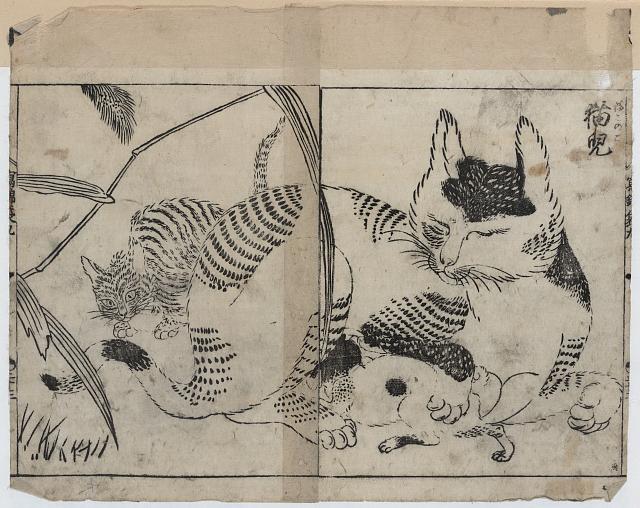
- To add pictures to your web page, you have to upload the file to your Neocities site first. Before you do that, you have to have a copy of the file saved on your device. It's important to make sure you hav permission to use any content you put on your website. There are free image sites linked at the end. For now, we're going to use the Library of Congress's free use images archive. Go to https://www.loc.gov/free-to-use/cats/ and find a picture of a cat, then save it to your device. On a library chromebook, click "download" on the image and then go to "Cast, save, and share" in the three dots menu. Rename the file something better!
- Go back to Edit Site on Neocities and go to "upload". Find the image file you saved and upload it. (You can also drag and drop files to upload.) On a library Chromebook, it will be under "downloads."
- The file you uploaded should now be showing with your other neocities files. Right-click on the title and select "copy link". People anywhere in the world can now see that image by going to that link.
- To add the file to your index page, go to edit your index page again. Then we need to add a image imbedding tag. Type <img src= then paste the url you copied. Then type alt=" and after the quotation mark, type a short description of the image, to help people who can't load it. Then close the quotation markrs and type &;gt to close the image embedding tag.
- To link to another webside, you use <a> tags. "A" stand for "anchor" and means you are sending the reader to a new location. To send them to another website, you use <a href= and then put the web address after the = ("href" means "http reference")
- Let's add a link back to the library to your page. Go in to edit index.html again. Under where you put your image, type < a href=" You could link to any website here. I'm going to link to the library by typing http://www.aacpl.net and then you type "> After that you put in a description of the link -this is what people can click on. Then type < /a> to show your are finished with your link. The finished link should look like <a href="http://www.aacpl.net">Made at an Anne Arundel County Public Library program</a> Then save the index page again when you're done. You should see Made at an Anne Arundel County Public Library program. You can keep adding more links, images, and text as long as you want - and then learn even more things to do!
HTML learning resources
Free to use image archives
Other free webhosting resources
Free to download or use apps for writing code